

This is a Comfy Cloud feature and is only available in the cloud version. To learn more about Comfy Cloud, see Comfy Cloud.
Overview
Comfy Cloud allows you to import models directly from Civitai and Hugging Face. This feature is available for users with a Creator subscription or higher.Requirements
- Subscription: Creator tier or above
- Supported sources: Civitai and Hugging Face
How to import models
1. Access the import feature
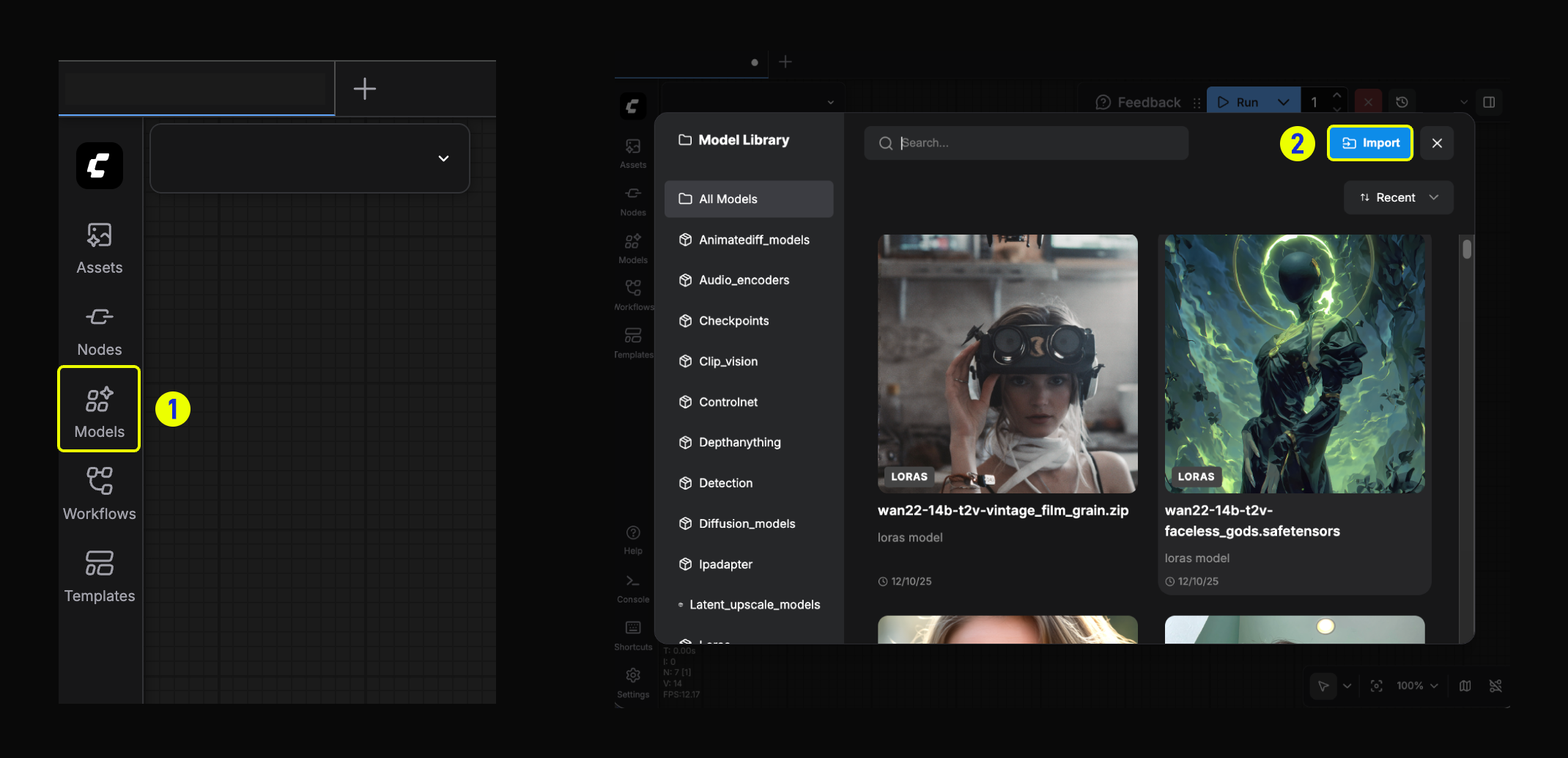
- Click the Models button in the left sidebar to open the Model Library.
- In the Model Library modal, click the Import button.
2. Paste the link
-
Paste the model link you obtained from Hugging Face or Civitai.
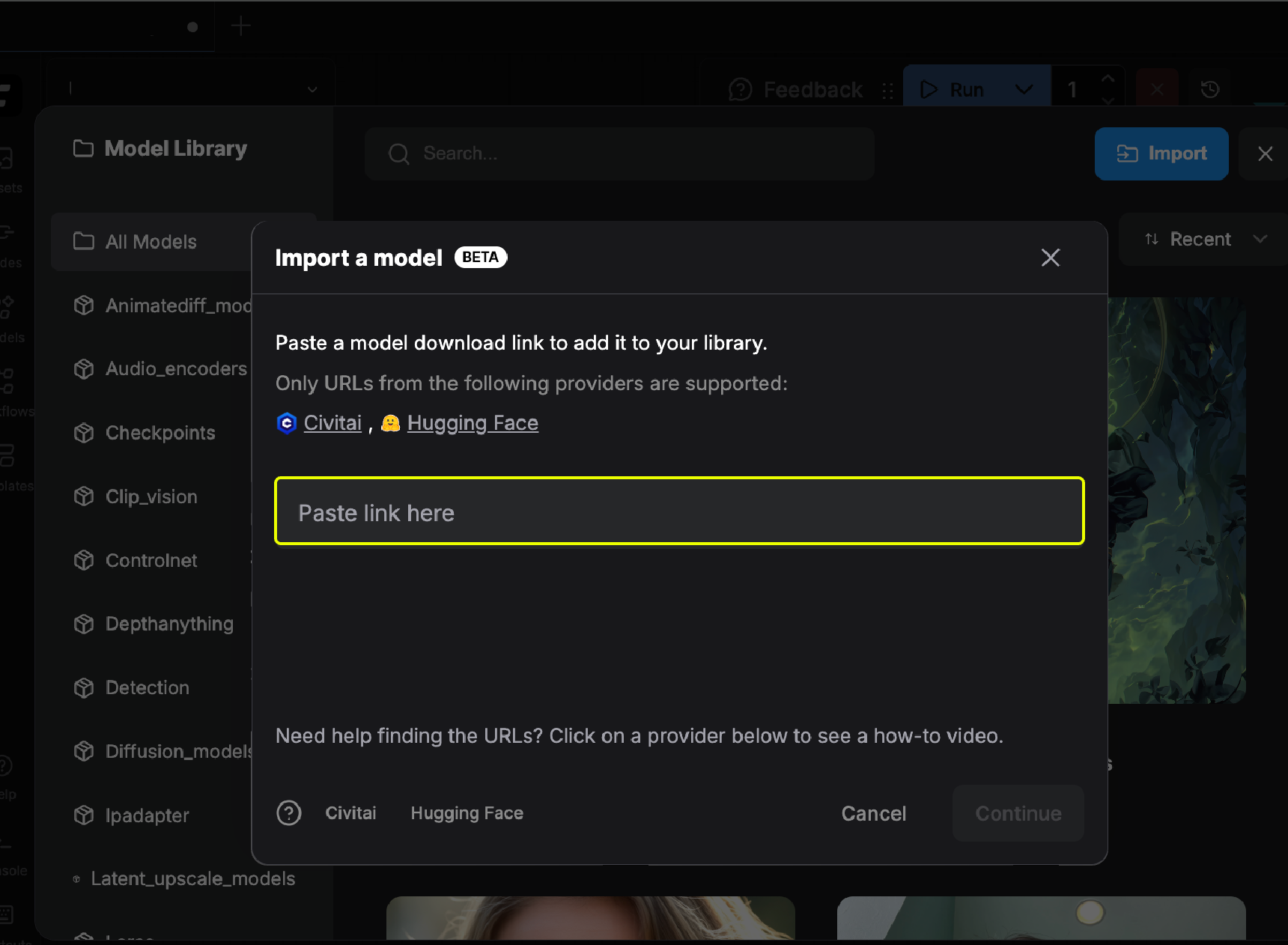
-
If the link is valid, you will see a confirmation indicator and can click the
Continuebutton to proceed.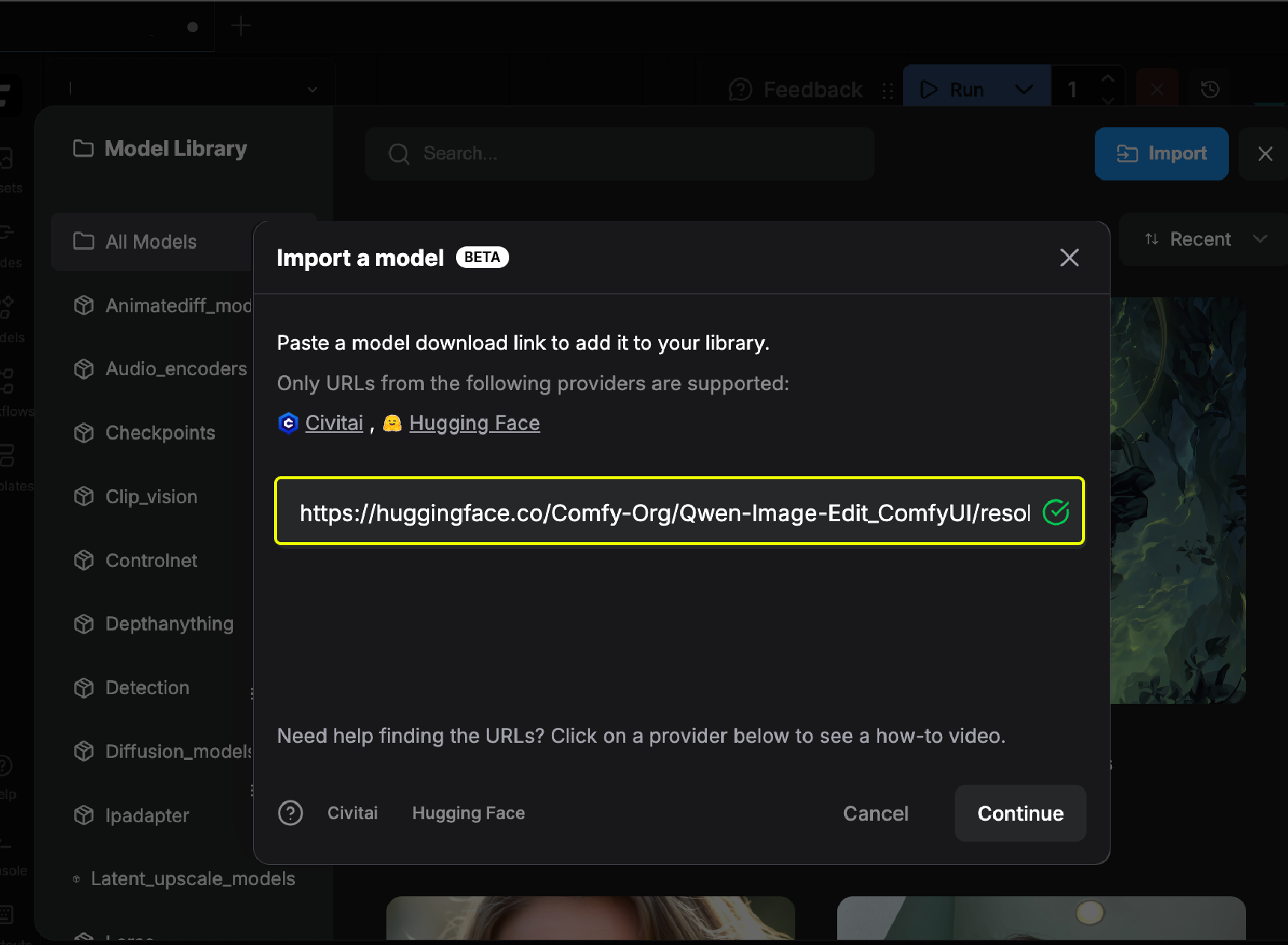
-
Select the model type and target folder.
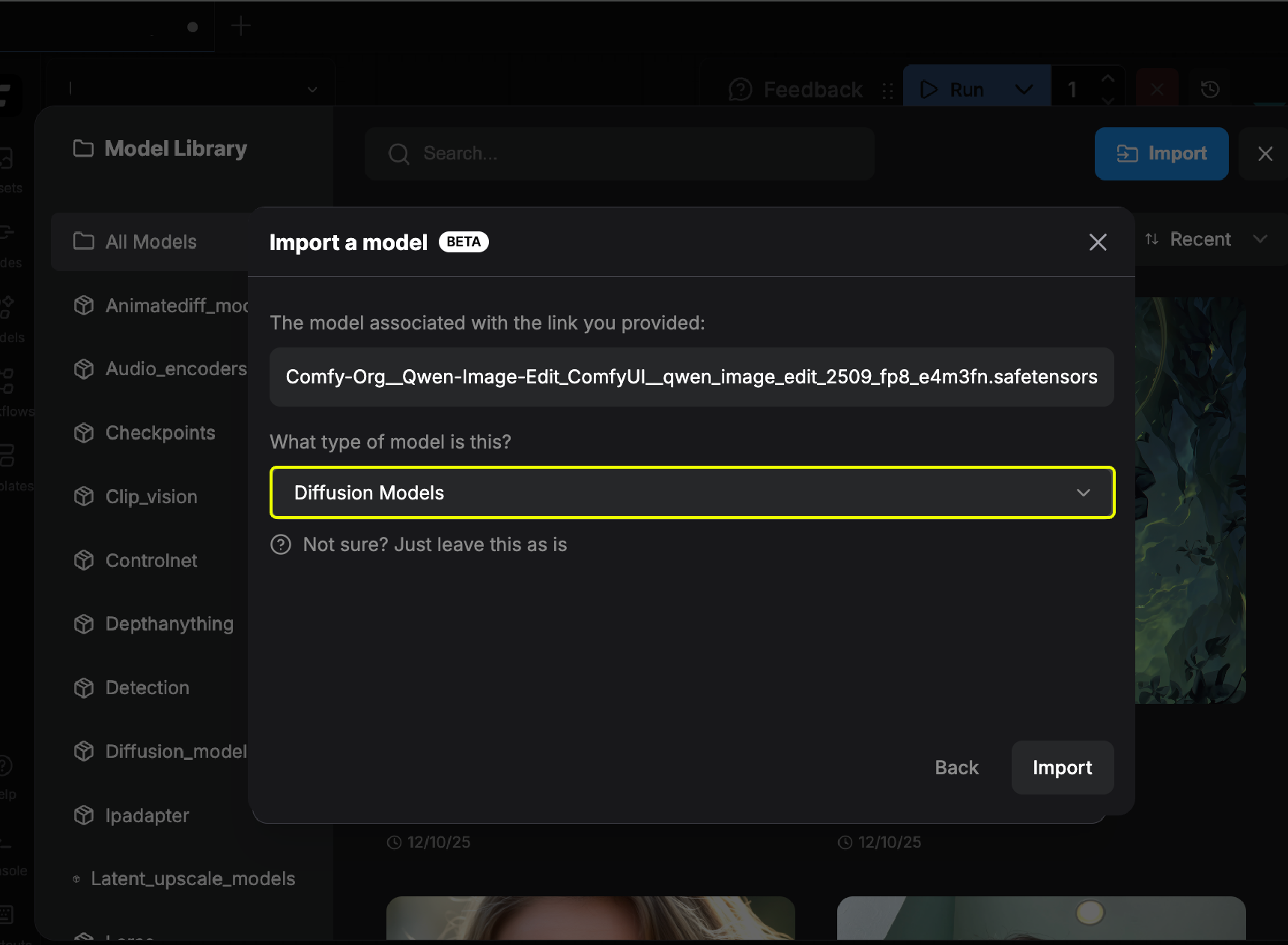
-
Wait for the model to finish downloading.
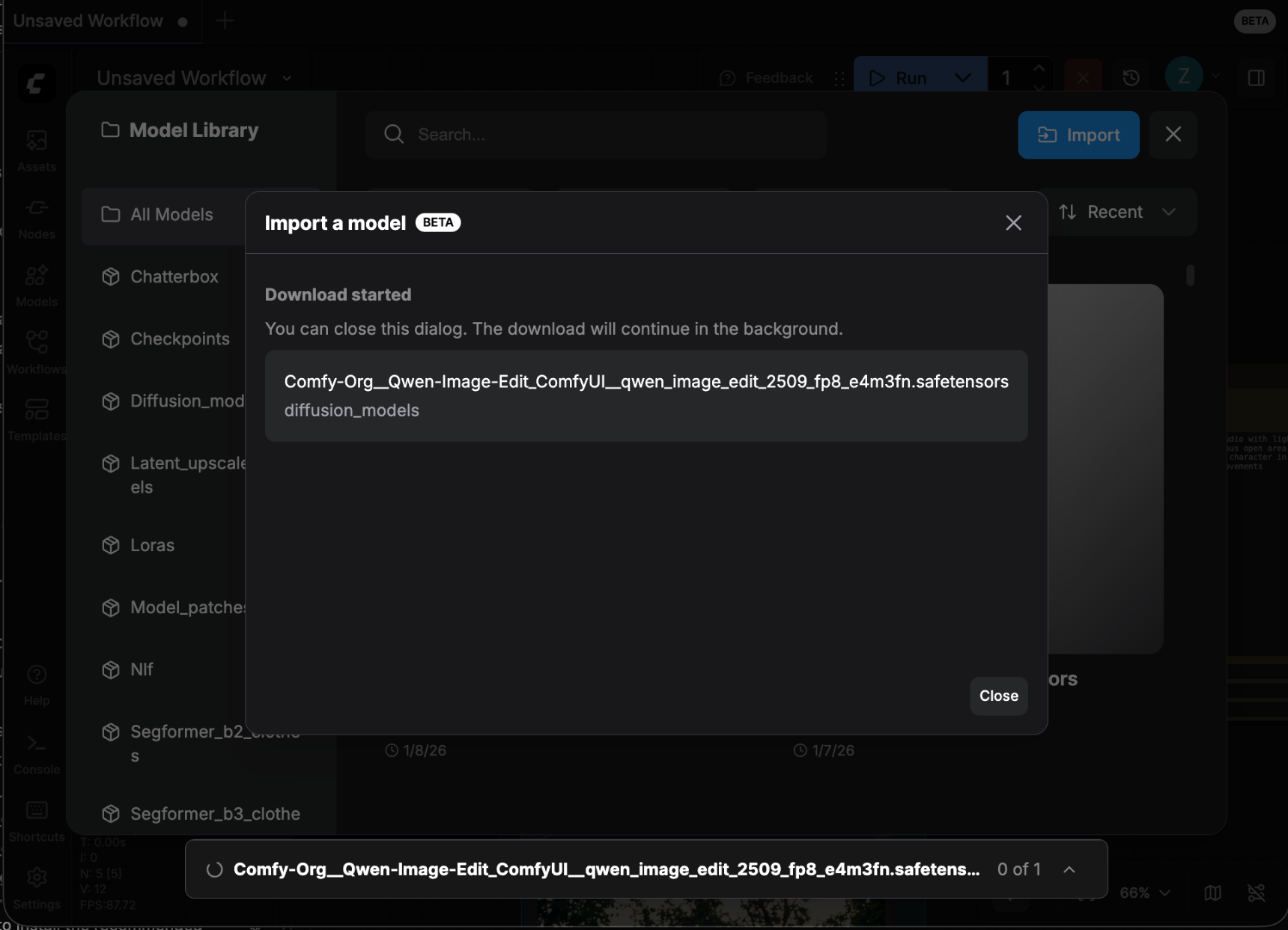
- Once downloaded, you can find the model in your Model Library.
How to view imported models
In the Model Library, select “My Models” in the dropdown filter to filter out the models you imported.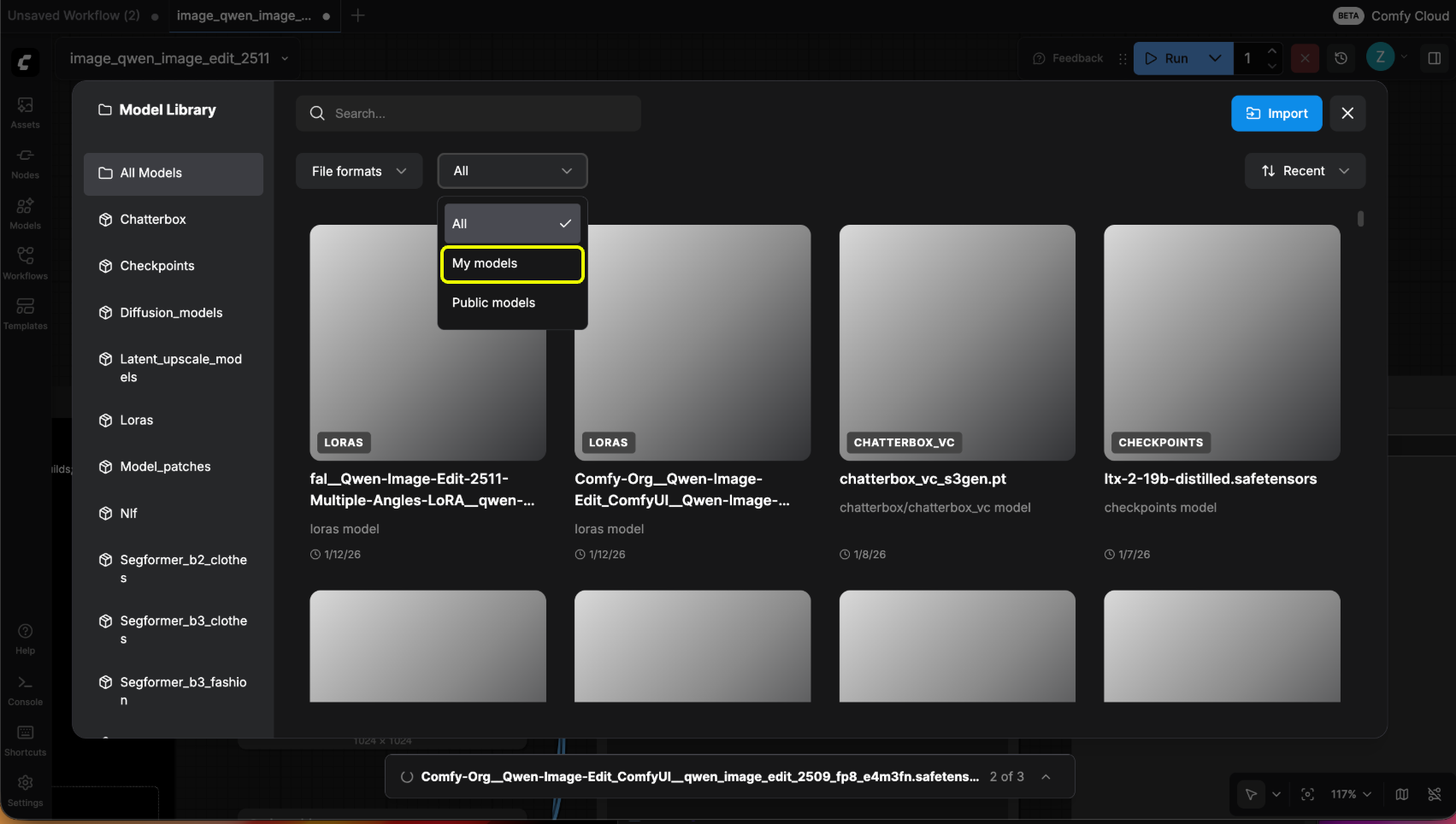
How to get model import links
1. Get link from Civitai
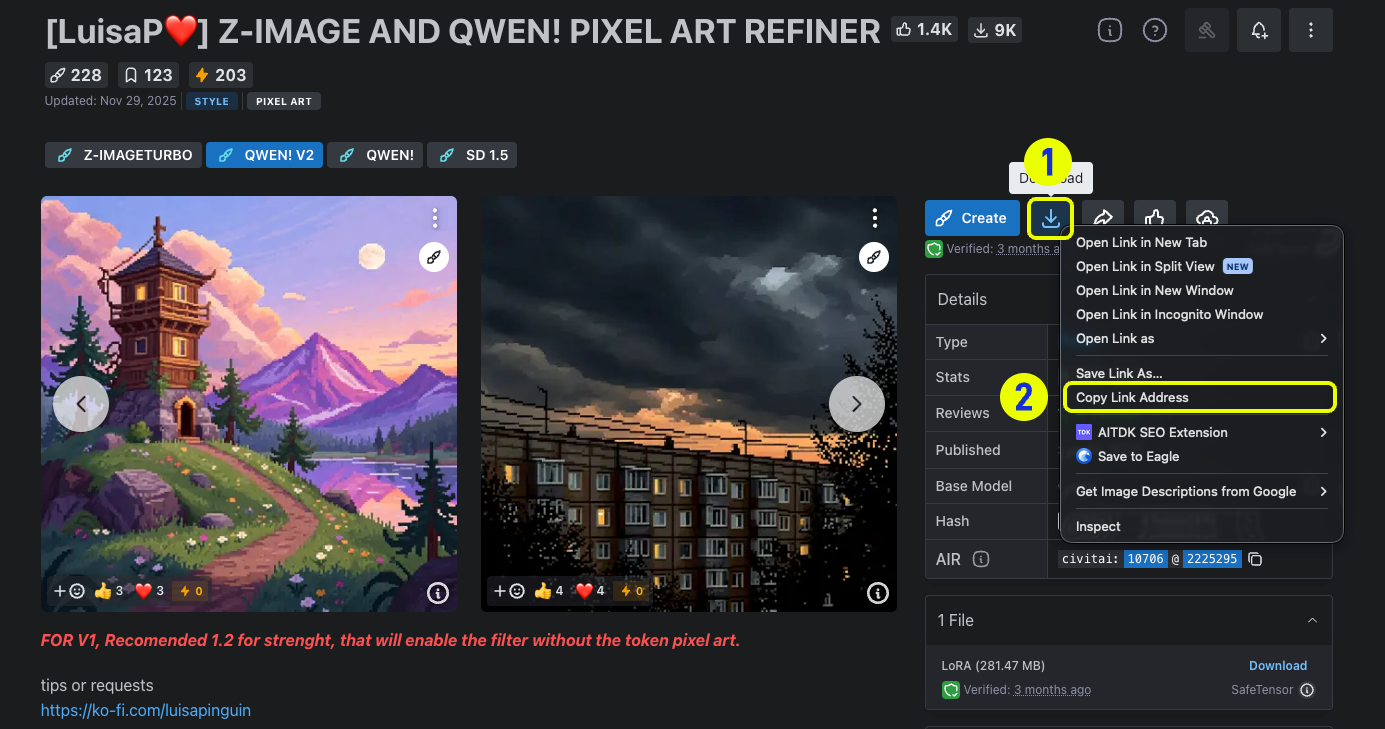
- Go to Civitai and find the model you want to import.
- Right-click the download button and select “Copy link address” to get the model download link.
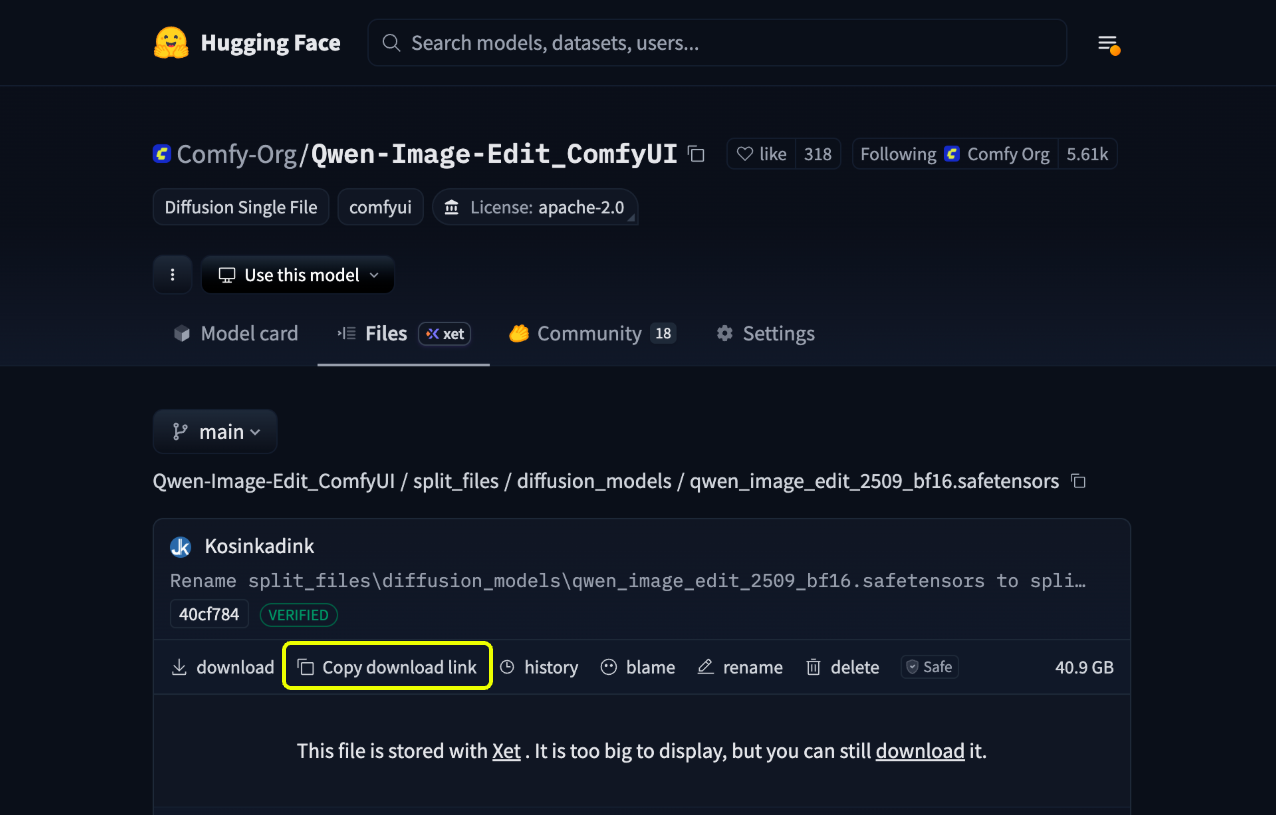
2. Get link from Hugging Face
- Go to Hugging Face and find the model repository you want to import.
- Navigate to the model files page. Supported formats are typically “.safetensor” or “.sft” files. Click on the specific model name to enter its detail page.
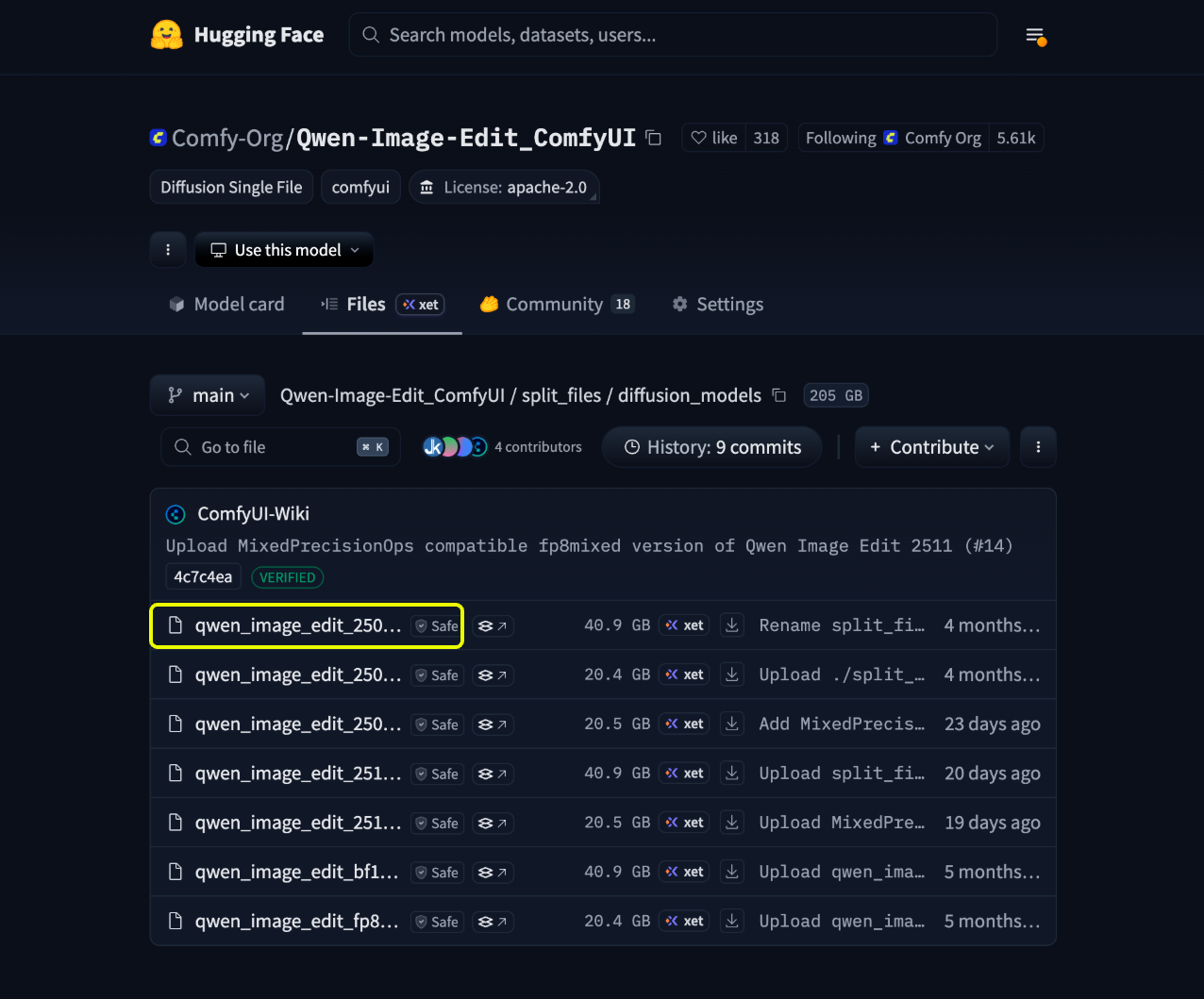
- On the detail page, click the
Copy Download Linkbutton to get the model download link.
Import private models
If you want to import private models from Hugging Face or Civitai, you need to configure your API keys first.1. Generate your API keys
First, you need to generate API keys from the respective platforms:- Civitai
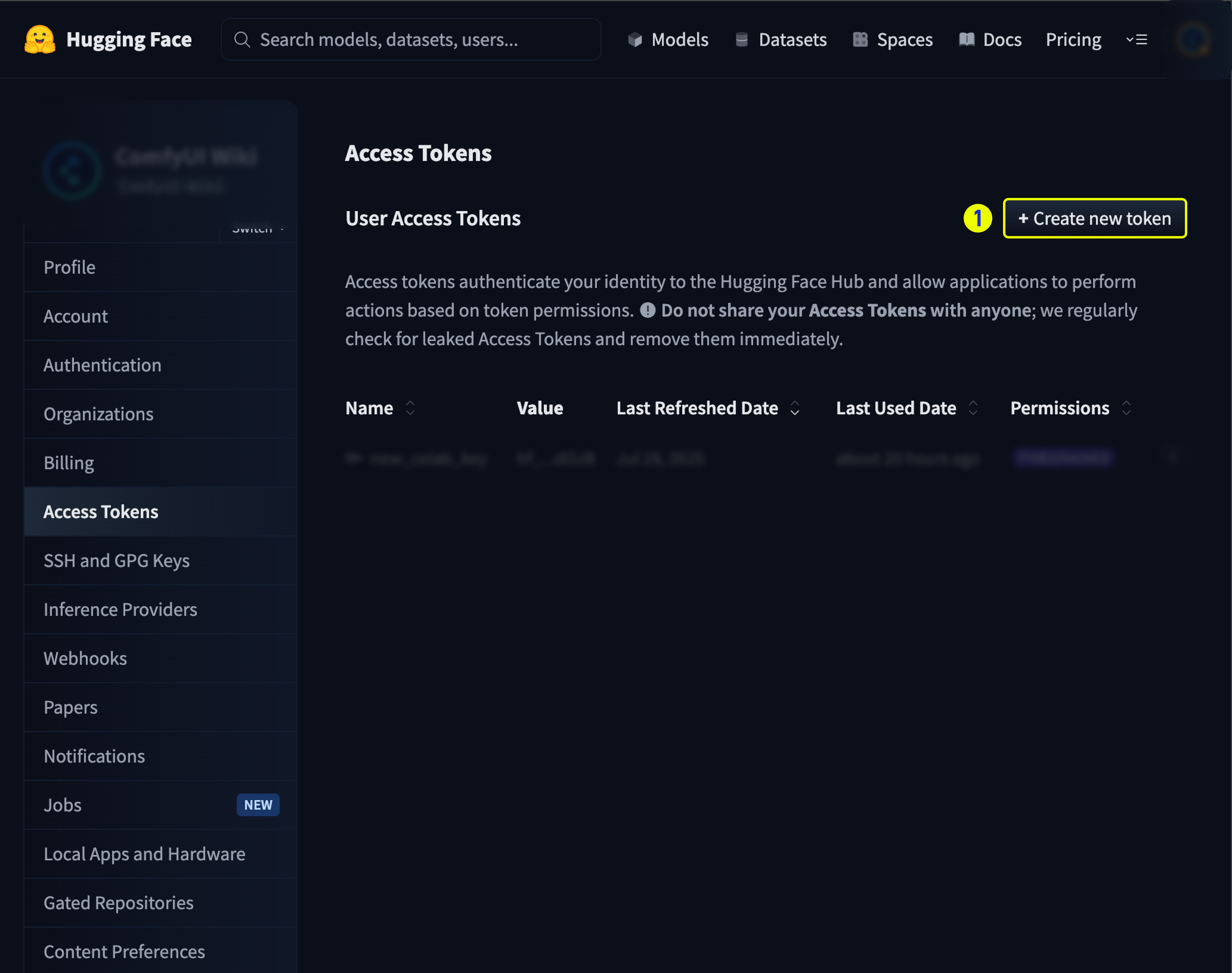
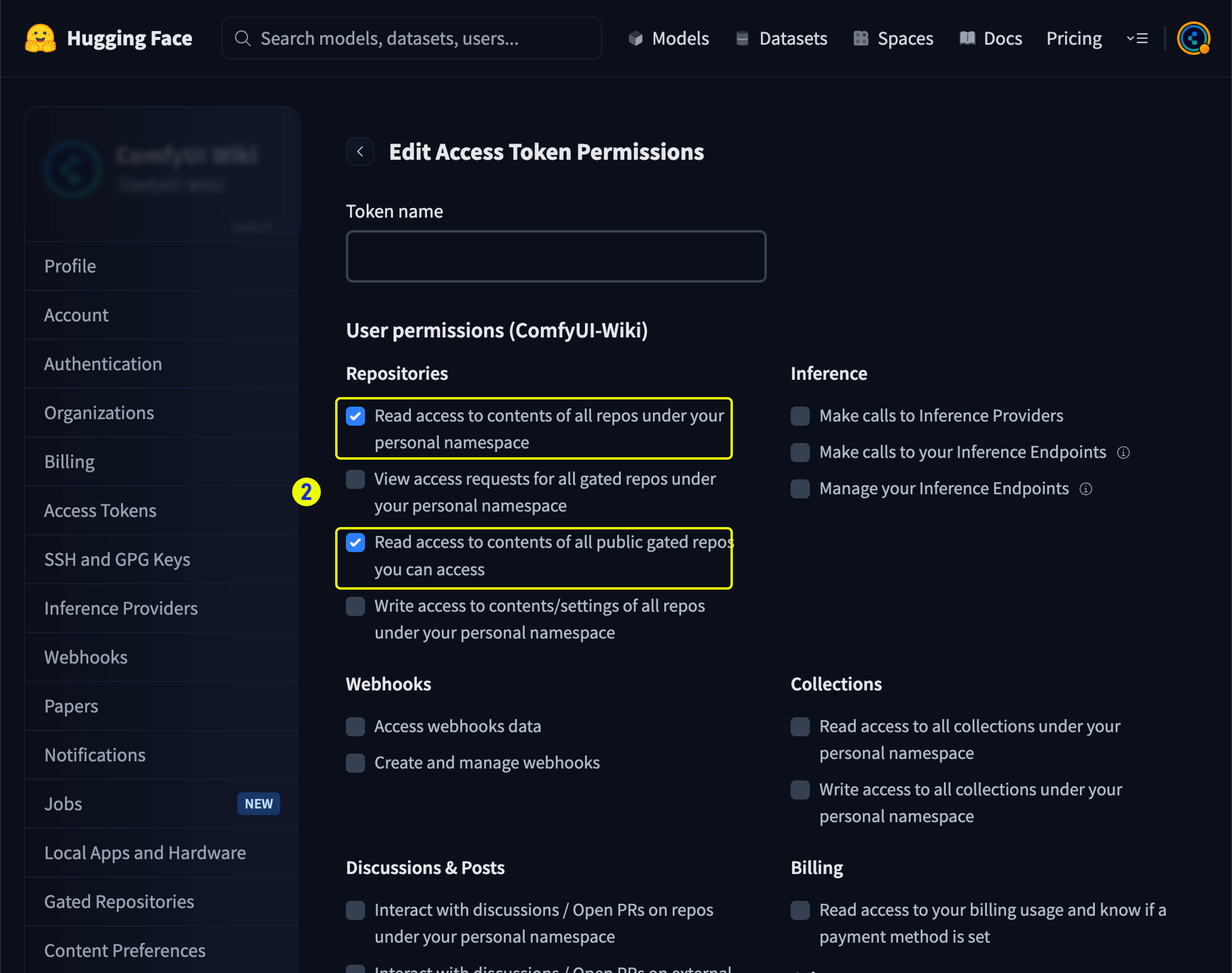
- Hugging Face
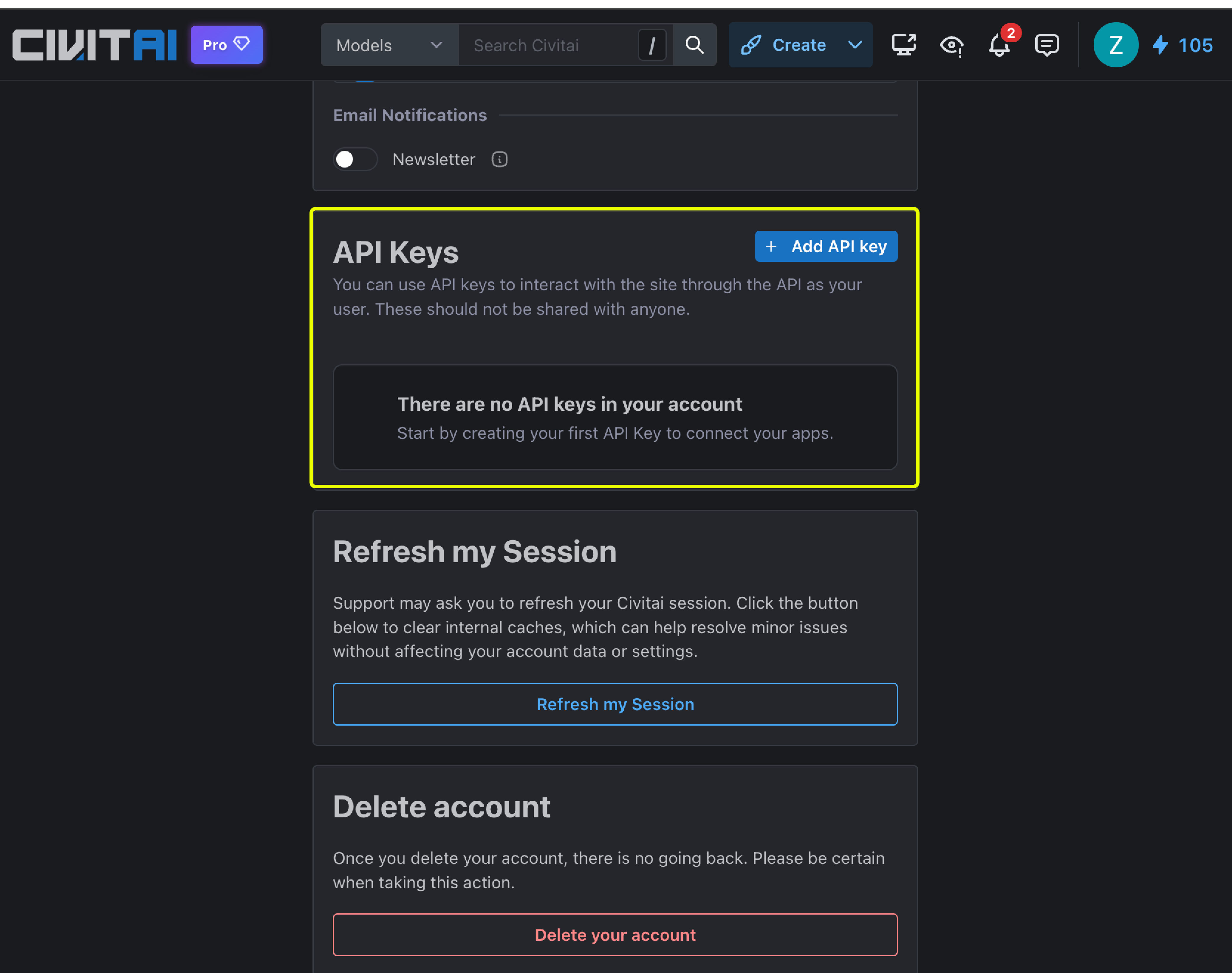
- Log in to Civitai and visit https://civitai.com/user/account.
-
Generate your API key in the account settings.
2. Save your API keys
- Go to Comfy Cloud Settings and navigate to the Secrets section.
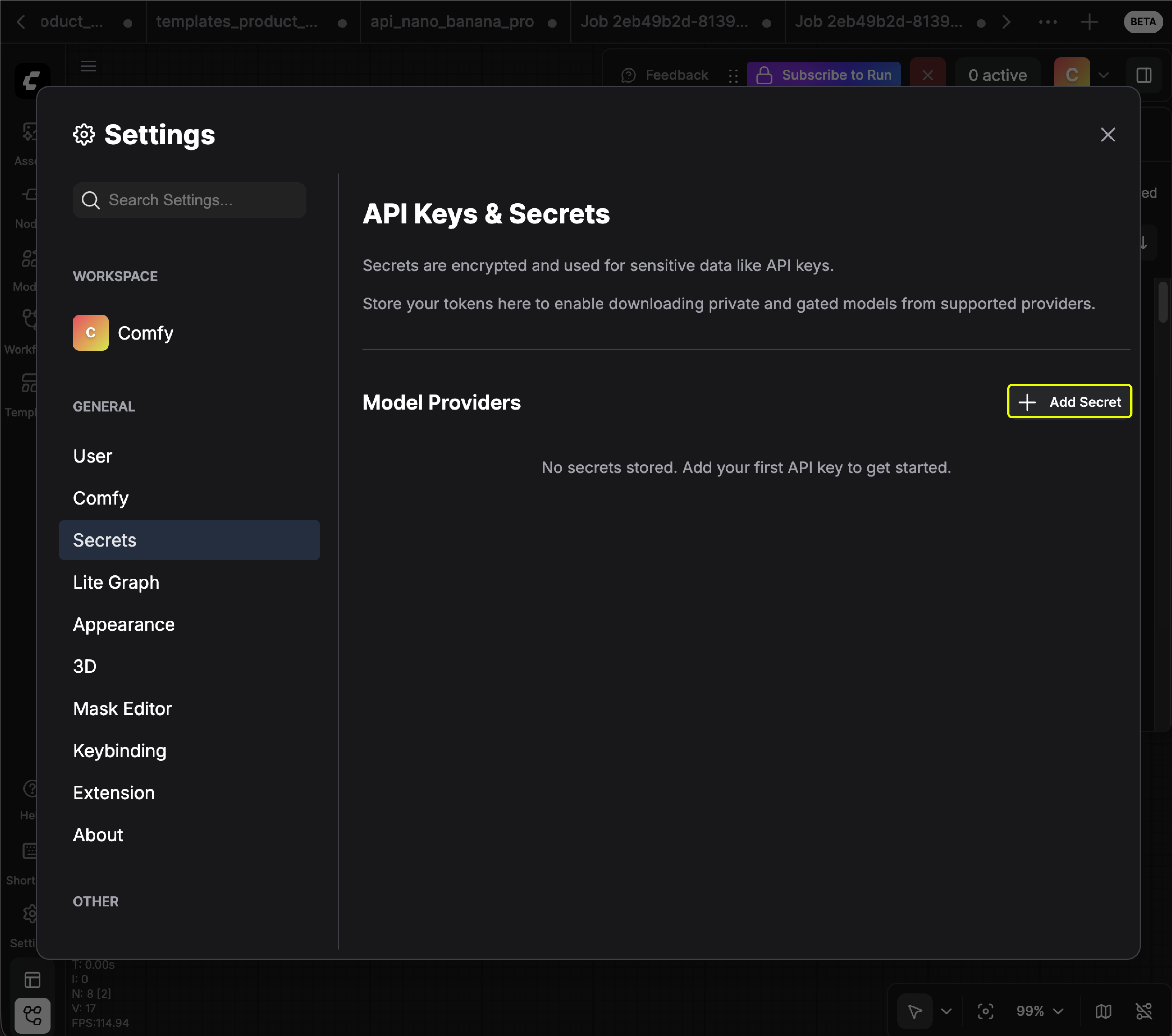
- Click to add your API keys (you can name the key anything you like):
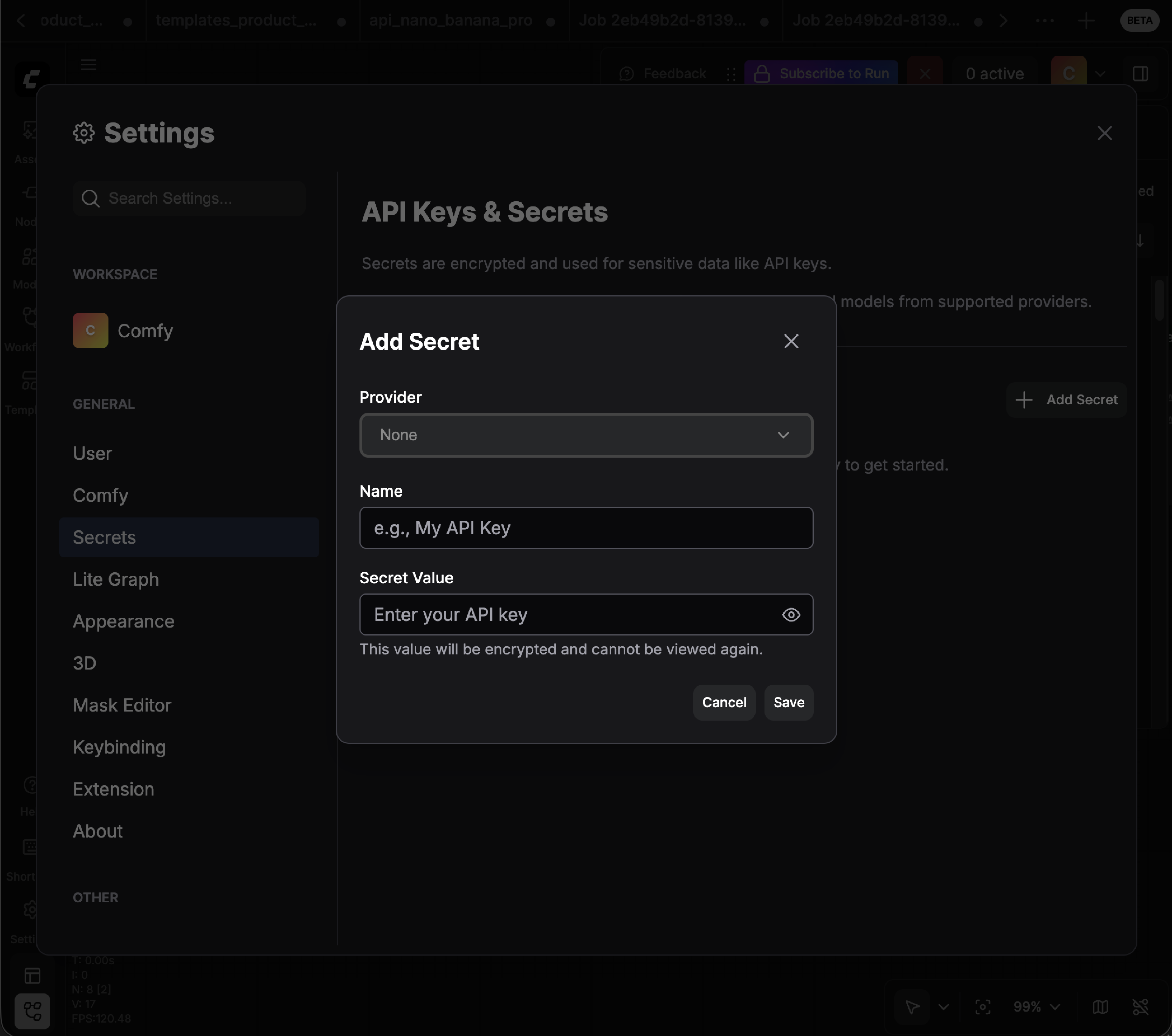
- Make sure your API keys have access permissions to the private models you want to import.
3. Import the private model
Once your API keys are configured, you can import private models using the same process as public models:- Get the model link from Hugging Face or Civitai.
- Paste the link in the import modal.
- The system will automatically use your saved API keys to access the private model.
Make sure your API key has the necessary permissions to access the specific private model you want to import.
FAQ
Are there restrictions on what models I can upload?
Are there restrictions on what models I can upload?
Yes. Only safetensor file types are supported. There is effectively no file size limit (up to 100GB).
Are the models I upload private or shared with everyone?
Are the models I upload private or shared with everyone?
Can I upload my own custom models from my local hard drive?
Can I upload my own custom models from my local hard drive?
Currently, you need to upload the model to a public Hugging Face or Civitai repository first, then import from those platforms.
Can I upload chunked model files?
Can I upload chunked model files?
No. You will need to combine chunked model files into one file before importing.
Is this feature included in my current cloud subscription?
Is this feature included in my current cloud subscription?
This feature is available for Creator and Pro plans only.
Is this feature accessible on the Desktop or portable versions of Comfy?
Is this feature accessible on the Desktop or portable versions of Comfy?
No. This is a Cloud-only feature.
Can I delete a model that I uploaded?
Can I delete a model that I uploaded?
Yes. You can delete models you imported. Note that models uploaded by the Comfy internal team cannot be deleted.