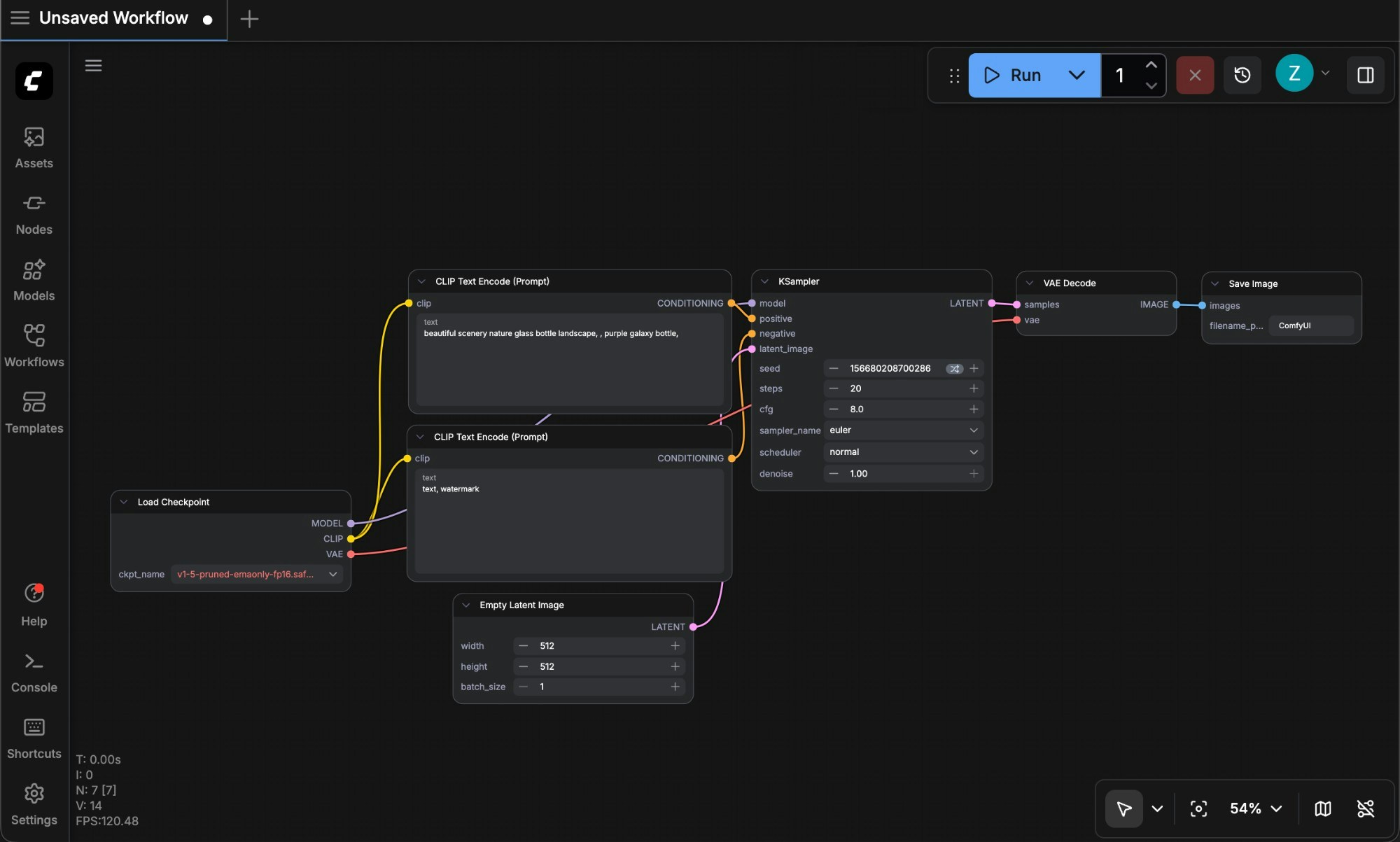
The visual interface is currently the way most users utilize ComfyUI to call the ComfyUI Server to generate corresponding media resources. It provides a visual interface for users to operate and organize workflows, debug workflows, and create amazing works. Typically, when you start the ComfyUI server, you will see an interface like this: ComfyUI Basic Interface Currently, the ComfyUI frontend is a separate project, released and maintained as an independent pip package. If you want to contribute, you can fork this repository and submit a pull request.

Localization Support

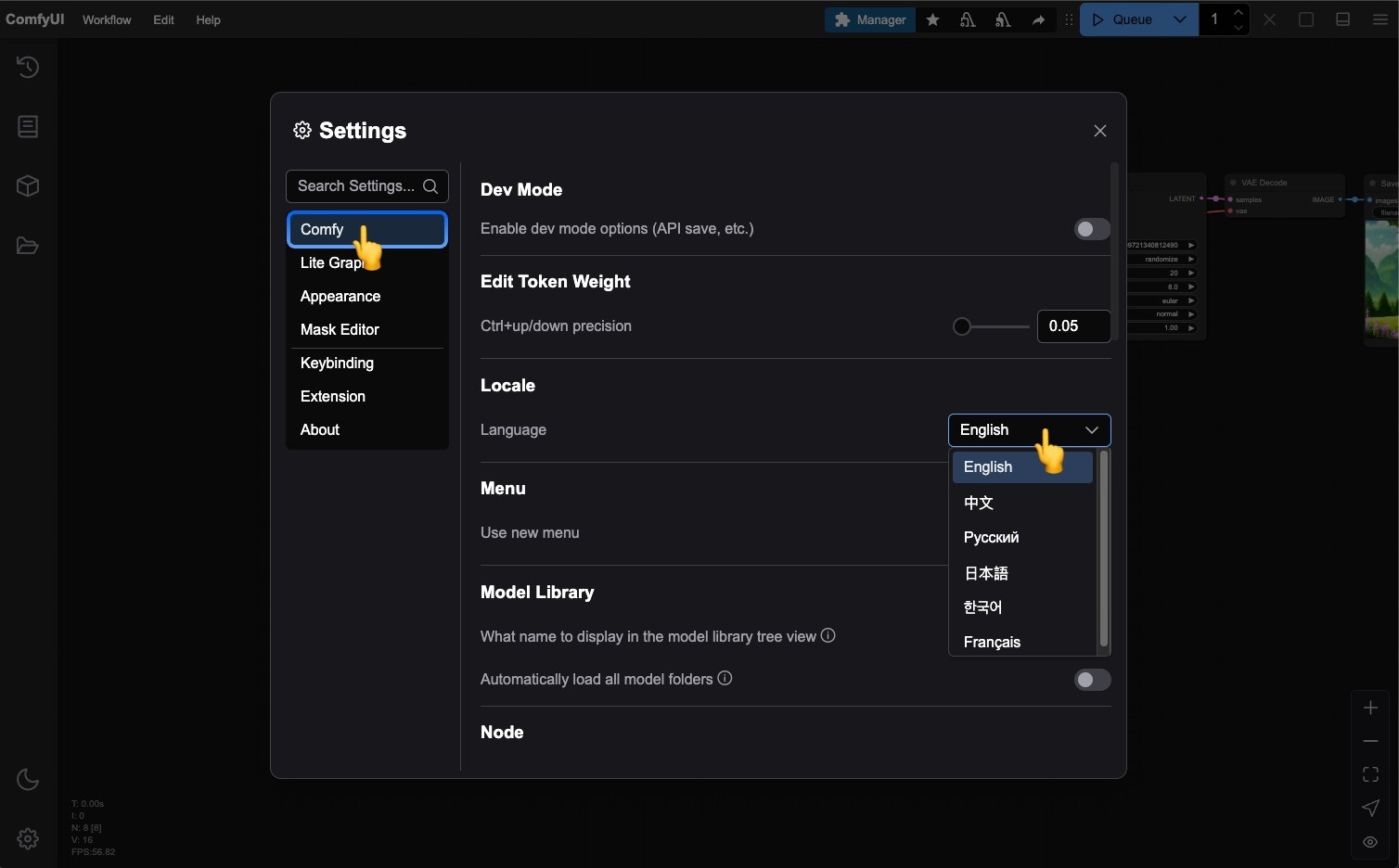
Currently, ComfyUI supports: English, Chinese, Russian, French, Japanese, and Korean. If you need to switch the interface language to your preferred language, you can click the Settings gear icon and then select your desired language under Comfy —> Locale. ComfyUI Localization Support

New Menu Interface

Workspace Areas

Below are the main interface areas of ComfyUI and a brief introduction to each part. ComfyUI Workspace Currently, apart from the main workflow interface, the ComfyUI interface is mainly divided into the following parts:
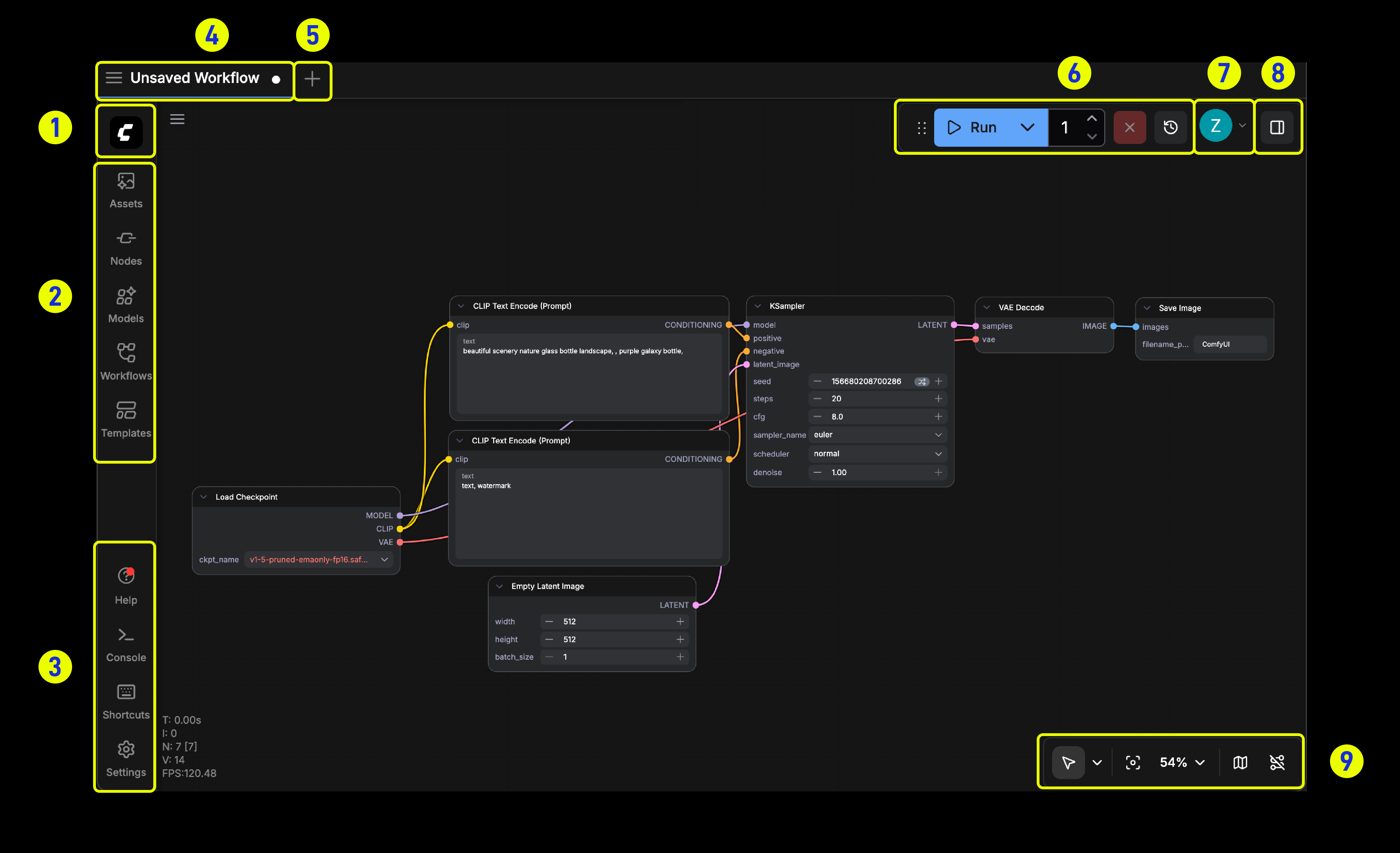
  1. Main Menu: Click to expand the function menu, including file operations, help menu, etc.
Left Navigation Sidebar: 2. Left Panel Entries:
  • ASSETS: Displays generated images, videos, and other assets.
  • Nodes: Lists ComfyUI native and third-party nodes.
  • Models: Shows model information detected after ComfyUI starts. After startup, if models are downloaded, press the r key to refresh node definitions and get the latest models.
  • Workflows: Displays locally saved workflows.
  • Templates: Provides ComfyUI built-in workflow templates.
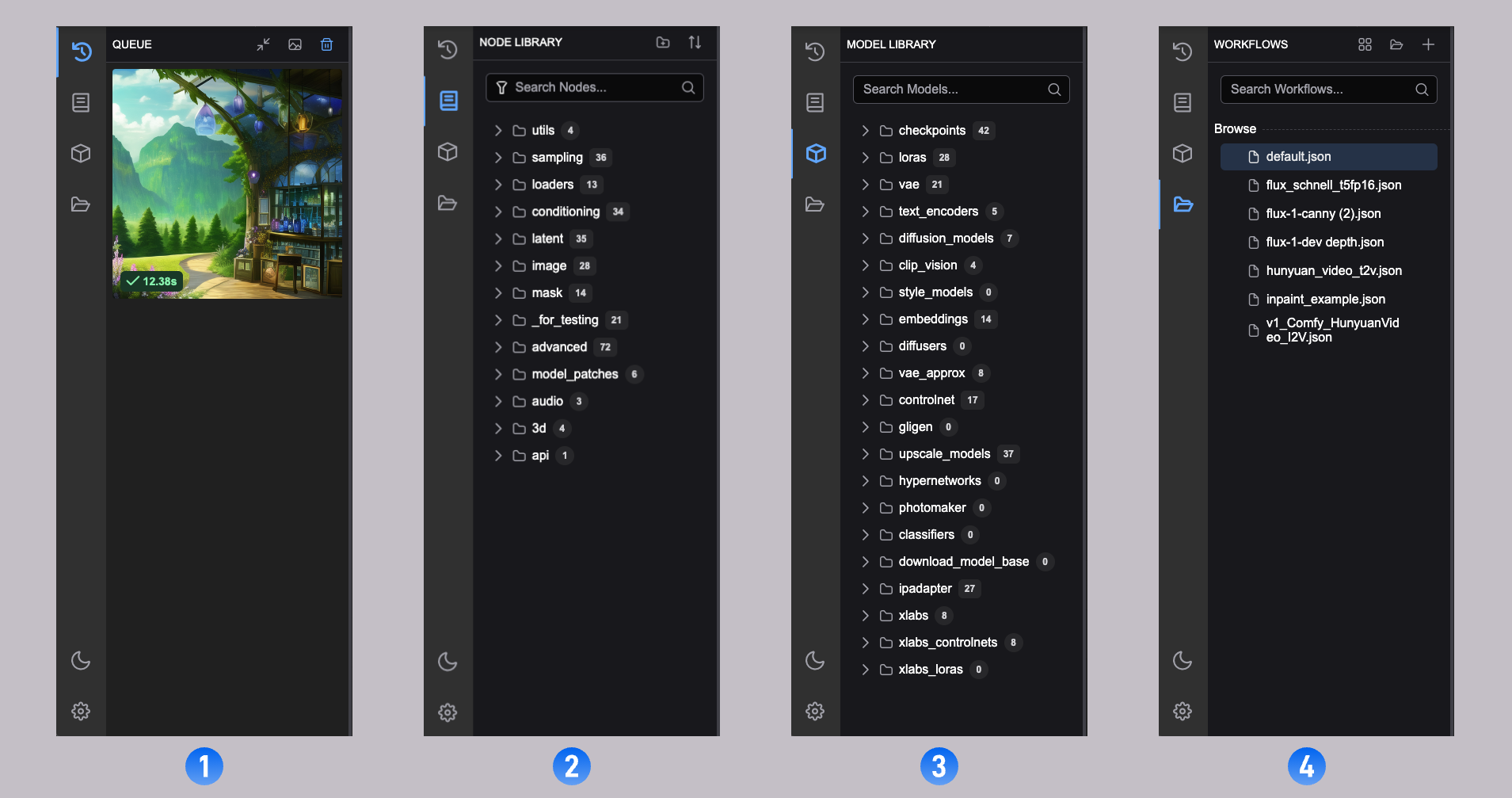
Bottom Left Toolbar: 3. Bottom Toolbar: Contains buttons for Help (opens runtime logs), Console (opens runtime logs), Shortcuts (displays shortcut panel), and Settings (opens settings panel). Top Header Bar: 4. Top Area: Displays the currently opened workflow. 5. New Workflow Button: Click to create a new blank workflow file. 6. Right Control Area: Run and queue control management, where you can run workflows and view the queue. 7. Login Status: Not displayed by default, only shown after login, used when closed-source API nodes are required. 8. Quick Access Button: Opens the right-side panel. Bottom Right Canvas Controls: 9. Canvas Navigation Tools: Can switch between move or pan modes, open the minimap, and toggle node connection display. ComfyUI Sidebar Panel In the current ComfyUI, we provide four side panels with the following functions:
  1. Workflow History Queue (Queue): All queue information for ComfyUI executing media content generation
  2. Node Library: All nodes in ComfyUI, including Comfy Core and your installed custom nodes, can be found here
  3. Model Library: Models in your local ComfyUI/models directory can be found here
  4. Local User Workflows (Workflows): Your locally saved workflows can be found here

Old Menu Version

Currently, ComfyUI enables the new interface by default. If you prefer to use the old interface, you can click the Settings gear icon and then set Use new menu to disabled under Comfy —> Menu to switch to the old menu version.
The old menu interface only supports English.
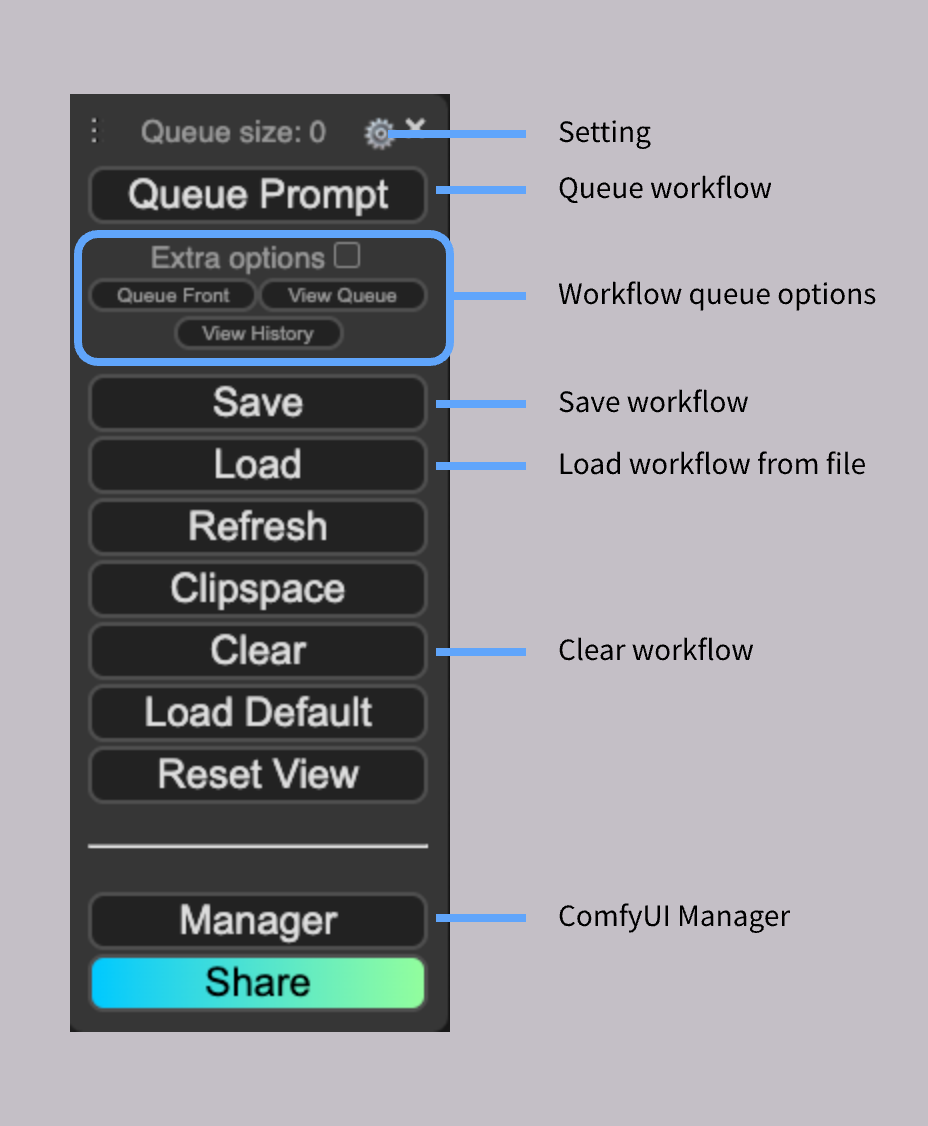
The function annotations for the old menu interface are explained below: ComfyUI Old Menu